NSTableView scroll bug in macOS Tahoe
31st January 2026 • 1,041 words • 5 minutes reading time.
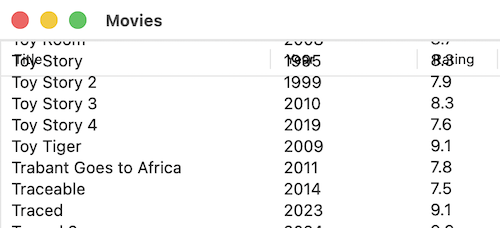
Recently. I was working with an AppKit app that uses an NSTableView to display long list of items. While testing the app on macOS Tahoe, I noticed a bug in the scrolling behavior: when I scrolled down from the top, the content rows would scroll into the header, making the top messy and unreadable. This sort of overlapping and unreadable text is a feature of the various OS 26s, but in this case, there wasn't a hint of transparency, so it looked like a bug to me.
I did a lot of searching online, but couldn't find any references to this specific issue, so once I worked out the cause and a workaround, I thought I'd share it here, for anyone else who encounters this issue.
The Problem
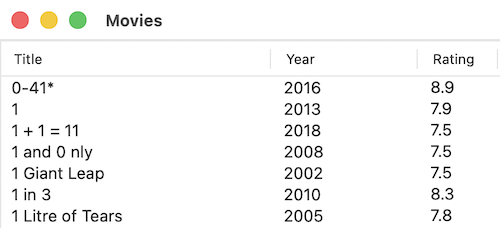
First, let me show you what happens. This is from the MovieTables app for an upcoming update to the macOS Apprentice book.
When the table is scrolled to the top you can see the headers:
After scrolling, it's a mess:
This exact layout worked fine on earlier versions of macOS, but as is often the case with all the OS 26s, things that used to work no longer do.
Investigating the Problem
I tried many things to fix this: adjusting all the various settings for the table view, its clip view, the enclosing scroll view and the header view but nothing worked. I adjusted content offsets, turned on or off various clip settings and so on. I even tried manually adding constraints to pin the content inside the safe area. And as I already mentioned, I couldn't find anyone online who had encountered this problem.
Finally, I decided to request code-level support using my Apple Developer account. Before starting that, I needed to create a stripped down sample app that demonstrated the problem. After using AI to generate a JSON file containing 500 sample data points (one thing AI is really good at), I added all the boilerplate code and setup needed to display data in an NSTableView using a data source and delegate. I ran the app and ... it worked perfectly, with no overlapping text!
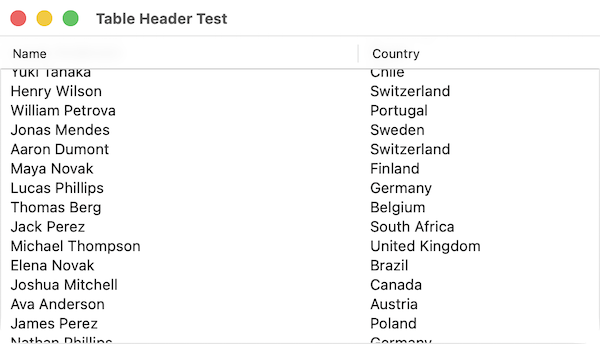
WHAT!!!
Once I calmed down a bit, I realized that at least this meant that there had to be a solution. Now I had to find the difference between my main app and the sample app that was causing the problem.
Finding the Solution
It looked like nearly everything was identical in both tables. The only obvious difference was that my main app's table had 3 columns and the sample app only had 2. I modified the sample app to add another column and that changed nothing.
Then I stopped looking at the table itself and considered the overall layout of the window. In the sample app, the table was the only view in the window's content view, so I set its Auto Layout constraints to make it fill the window completely. In my main app, I had left space for other views below and to the right of the table view. Could this be significant?
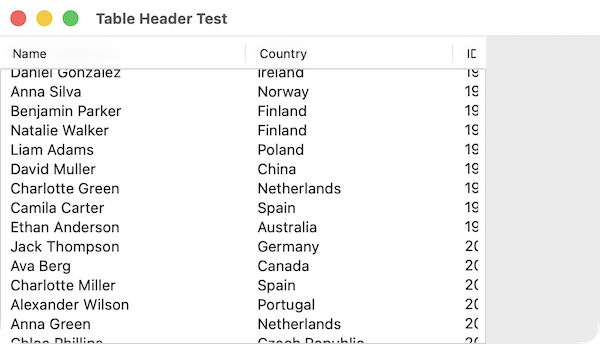
Acting on the principal of only changing one experimental variable at a time, I added space on the right and set a background color for the view to make the table positioning clear. No change - the table still scrolled perfectly, with the content disappearing under the headers as expected:
I reversed that change and then added space below the table view. Bingo! ... The problem appeared!
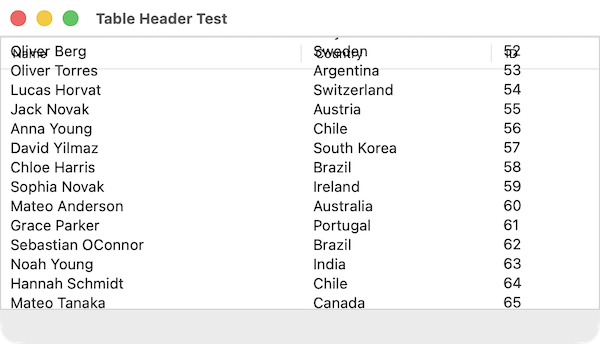
So that was the bug. If a table doesn't stretch from top to bottom of its view controller's content view, in macOS Tahoe, the content will scroll into the header.
Note: When you add an
NSTableViewto a storyboard, it arrives wrapped in anNSClipViewwhich is itself wrapped in anNSScrollView. TheNSScrollViewis the view that actually gets positioned and sized using Auto Layout. That's the view that has to fill the entire height of the content view.
So now I had identified what caused the problem, but how to fix it? One possibility was to work out a different location for the view I wanted to add to the bottom of the window, so that the table could fill the view vertically, but I didn't want to do that. I wanted a workaround that would allow me to keep my existing layout.
What if I added space above the table view as well as below it? I tried that, and it worked! The table scrolled correctly, with the content disappearing under the headers as expected.
I ended up spacing the table view 1 point down from the top and 1 point in from the left of its enclosing view. The left spacing is not required but it makes the layout look more symmetrical. This prevents the bug from occurring and allows me to add the content I want underneath the table:
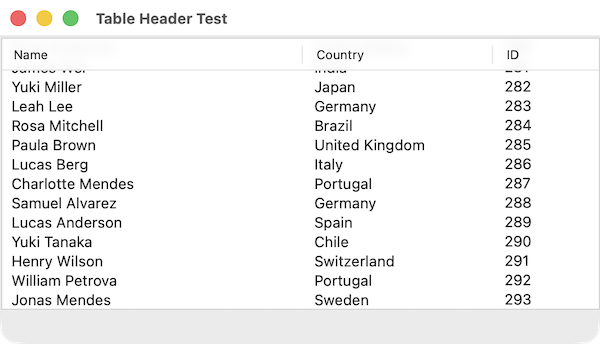
I don't think it looks as neat and clean as the original layout, but at least it works.
Conclusion
If you're using an NSTableView in an AppKit app running on macOS Tahoe, and you notice that the content scrolls into the header view, check the layout constraints of the NSScrollView that contains the table. If it doesn't fill the entire height of its enclosing view, add a small amount of spacing above it to fix the problem.
I discovered later that another option is to turn off the border for the NSScrollView, but I prefer the spacing solution as I think the table looks better with a border.
If anyone from Apple is reading this, I filed a feedback report about this and included a sample project for testing (FB21850950).
If you have any feedback about this article, please contact me using one of the links below or through the Contact page. And if you found this useful, please buy me a coffee.